

Export
Export designs as PNG, JPEG or PDF, with optional commercial print support.
The export panel turns the design into a file: PNG, JPEG, or PDF. The user opens it with Export in the top bar, or with Cmd + Shift + E (Ctrl + Shift + E on Windows and Linux) after a click inside the editor. The keys do nothing while the user types in a text field. Save & Exit sends the file to your application through onExport. Download saves it on the user's computer.
Setup
Export works with no setup. To receive the file in your application, pass onExport:
import { ImageEditor, type EditorExtras } from '@layermetry/media-editor/react';

async function handleExport(file: File, extras?: EditorExtras) {
  const body = new FormData();
  body.append('design', file);
  // Share adds the address and the name that the user typed.
  if (extras?.email) body.append('shareWith', extras.email.to);
  const response = await fetch('/api/designs', { method: 'POST', body });
  console.log(`Sent ${file.name} (${file.type}, ${file.size} bytes): ${response.status}`);
  if (extras?.email) console.log(`Share with ${extras.email.name} <${extras.email.to}>`);
}

export default function App() {
  return (
    <div style={{ position: 'fixed', inset: 0 }}>
      <ImageEditor
        licenseKey="YOUR_LICENSE_KEY"
        onExport={(file, extras) => {
          handleExport(file, extras).catch((error) => console.error(error));
        }}
        onClose={() => console.log('The editor was closed')}
      />
    </div>
  );
}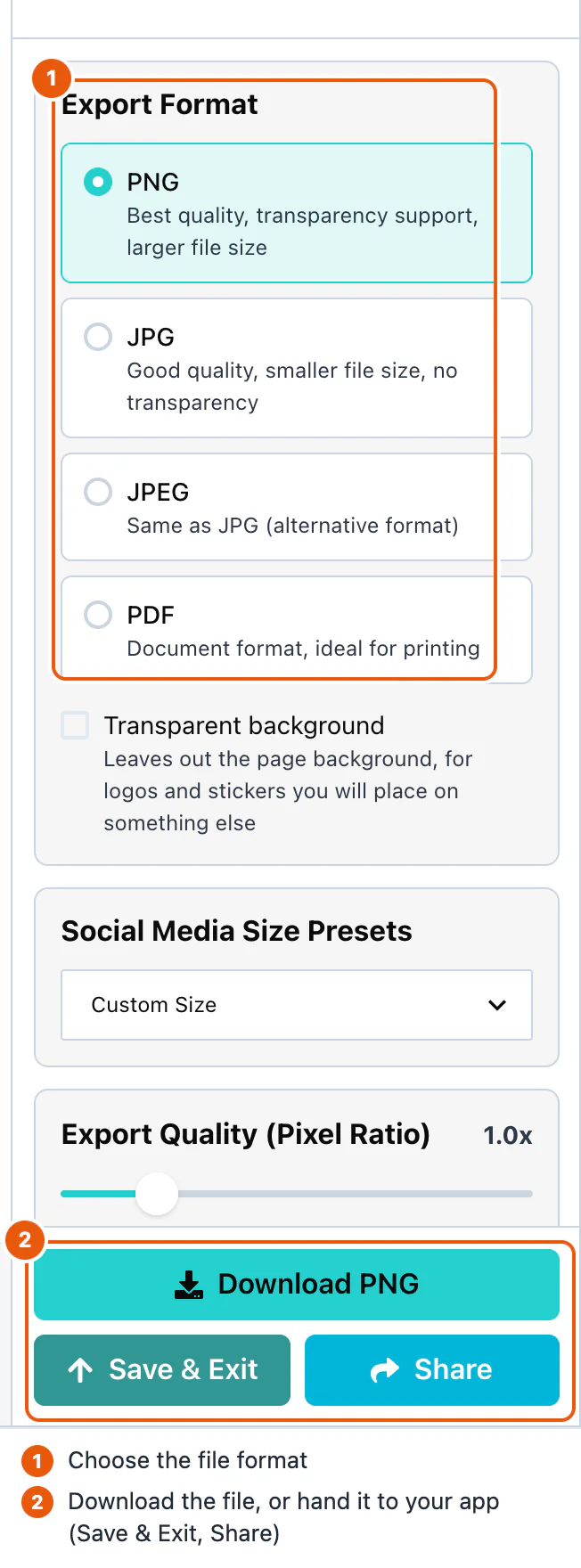
The panel opens with PNG selected, at the size of the page.
PNG
PNG keeps every detail, and it can have a transparent background. By default, the file has the size of the page in pixels: a 1080 × 1080 page gives a 1080 × 1080 file.
Export Quality (Pixel Ratio) makes the file larger than the page, from 0.5x to the largest value that stays within 6000 × 4000 pixels. At 2.0x, a 1080 × 1080 page gives a 2160 × 2160 file. For a 1080 × 1080 page, the largest value is 3.7x.
Social Media Size Presets export the page at a fixed size: Instagram Post (1080 × 1080), Instagram Story (1080 × 1920), Instagram Ad (1080 × 1080), Facebook Post (940 × 788), or Facebook Cover (851 × 315). The design is scaled to fit, and centered on a white background.
To change the page itself to one of these sizes, see Resizing.
Transparent background
Transparent background leaves out the page background, for logos and stickers that you place on something else. The option is for PNG, the only format with transparency. It is off when the panel opens.
The background is left out whether it is a color, a gradient, or a photo. Everything else stays in the file.
JPEG
JPG and JPEG both create a JPEG file. Only the file extension differs: .jpg or .jpeg. A JPEG file is smaller than a PNG file, and it has no transparency.
The pixel ratio and the size presets work as for PNG. The JPEG is saved at full quality.
Without a print plugin, PDF creates a standard PDF with one flattened image for each design page. For physical page sizes, searchable text, CMYK, bleed and trim marks, use the optional print plugin. Print Quality sets the resolution:
| Option | DPI | Use |
|---|---|---|
| 300 | What commercial printers ask for. This is the default. | |
| Draft | 150 | Home printing, and posters seen from a distance. |
| Screen | 96 | Reading on a screen. The smallest file. |
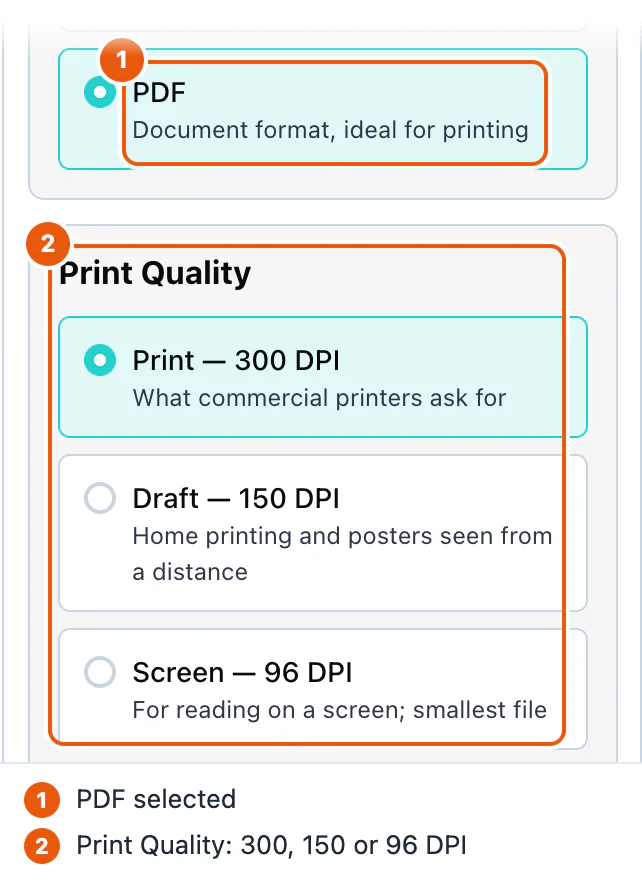
The PDF page keeps the shape of the design and fits A4: it is 210 mm wide, or 297 mm high when the design is tall. A 1080 × 1080 design gives a page of 210 × 210 mm. At 300 DPI, that page holds a picture of 2480 × 2480 pixels. At 150 DPI, 1240 × 1240. At 96 DPI, 794 × 794.
Each PDF page is a picture of the design page. The file name is canvas-export- followed by the date, for example canvas-export-2026-09-28.pdf.
Commercial print PDF
SDK 1.0.0 accepts an optional printPlugin for the image editor. When supplied, PDF export offers Commercial print PDF, physical page sizes, searchable text with embedded fonts, CMYK output, bleed and trim marks. The separate @layermetry/print-export package will be released separately. See Print export for installation, font and printer-profile setup, settings and limits.
Page selection
When the design has more than one page, Pages to export lists every page, all ticked. Untick the pages to leave out. At least one page must stay ticked.
| Format | One page | Several pages |
|---|---|---|
| PNG, JPEG | canvas.png or canvas.jpg | One ZIP file, canvas-pages- and the date, with page-1.png, page-2.png, and so on |
| A PDF with one page | One PDF with one page for each ticked page |
A ZIP file holds several pictures because a browser allows only one download for each click.
Handling the export
The three buttons at the bottom of the panel do different things:
| Button | Result |
|---|---|
| Download (for example Download PNG) | Saves the file on the user's computer. Your application is not called. |
| Save & Exit | Calls onExport(file) with the file in the selected format, then calls onClose. |
| Share | Asks for a name and an email address, then calls onExport(file, extras), with extras.email set to { to, name }. Then it calls onClose. |
onExport receives a File. Use file.type for the format, file.name for the name, and file.size for the size in bytes. Upload it to your server, as in the Setup example. The editor does not send your email or share anything by itself: your code decides what Share means in your product.
The editor calls onClose without waiting for your upload. Keep the file upload running after you hide the editor.
Configuration
| Prop | Type | Default | Description |
|---|---|---|---|
onExport | (file: File, extras?: EditorExtras) => void | none | Receives the file after Save & Exit and Share. |
onClose | () => void | required | Called after Save & Exit and Share, and by the close button. |
The formats, the pixel ratio, and the PDF resolution are chosen by the user in the panel. They have no props.
Events
The custom element sends an export event with the file, and a close event. See Events.