

Animations
Animate any element on the canvas.
Animations make an item appear, move, and leave. Every item that is visible on the canvas can have them: clips, pictures, text, shapes, and stickers. Each item has four places for an animation: In, Loop, Motion, and Out.
Setup
Animations need no setup. Select an item, and press Animate under it, or open Animations in the tool rail. The tool appears in the rail while an item is selected.
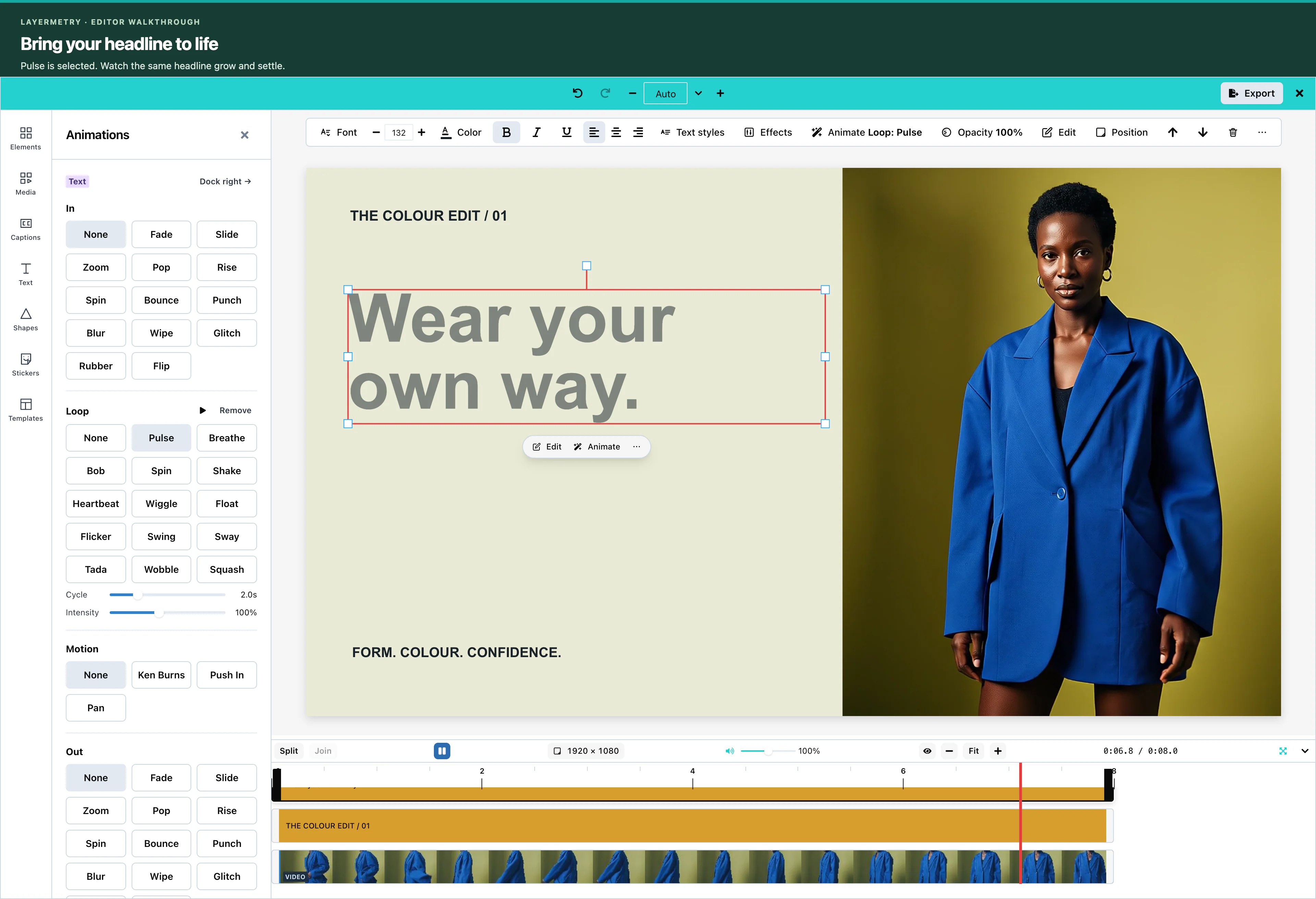 View full size
Press a preset to apply it. The editor plays the animation once on the canvas, so the user sees it at once. Remove clears one place.
Entrance and exit
In plays once when the item appears. Out plays once when it leaves. Both offer the same 13 presets:
Fade, Slide, Zoom, Pop, Rise, Spin, Bounce, Punch, Blur, Wipe, Glitch, Rubber, and Flip.
Slide also takes a direction: from the left, the right, the top, or the bottom. Spin turns clockwise or counter-clockwise.
Loop animations
Loop repeats for the whole time the item is visible. It offers 14 presets:
Pulse, Breathe, Bob, Spin, Shake, Heartbeat, Wiggle, Float, Flicker, Swing, Sway, Tada, Wobble, and Squash.
For a loop, Cycle sets the length of one repetition.
Motion effects
Motion is a slow move across the whole time of the item, often used on photos:
| Preset | What it does |
|---|---|
| Ken Burns | A slow zoom and pan. |
| Push In | A slow zoom in. |
| Pan | A slow pan across the item. |
Easing and timing
Each In, Loop, and Out animation has a Duration (or Cycle) and an Easing:
- Duration is from 0.1 to 10 seconds, and is 1 second when you apply a preset. In and Out together cannot be longer than the item is visible.
- Easing is Linear, Ease in, Ease out, Ease in-out, or Overshoot. Auto uses the easing that suits the preset.
- Intensity changes how strong some presets are, from 0.25 to 2. The default is 1.
Animations appear in the exported video exactly as in the preview.
Configuration
Animations have no props. To remove the tool, hide it in the tool rail:
ui={{ toolRail: { hidden: ['animations'] } }}Events
Animations have no events of their own. They reach you inside the exported video through onExport, and inside saved designs through onSaveTemplate. See Events.
Troubleshooting
Watch it move
Choose Pulse, then press Play to preview the headline animation.