

Backgrounds
Set the canvas background.
The background is the layer behind everything on the canvas. It lasts for the whole video, and it has no row in the timeline.
Setup
Colors, gradients, a blurred copy of a clip, and an uploaded picture work with no setup. Searching Unsplash for a picture needs your Unsplash key, and Generate background needs an ai setting that serves pictures:
import { VideoEditor } from '@layermetry/media-editor/react';

export default function App() {
  return (
    <div style={{ position: 'fixed', inset: 0 }}>
      <VideoEditor
        licenseKey="YOUR_LICENSE_KEY"
        onClose={() => console.log('The editor was closed')}
        onExport={(file) => console.log(`Exported ${file.name}`)}
        // Background pictures: your Unsplash key.
        stockMediaApis={{
          unsplash: { apiKey: 'YOUR_UNSPLASH_ACCESS_KEY', showAttribution: true },
        }}
      />
    </div>
  );
}
Open Background in the tool rail. At the top is Generate background, when your ai setting serves pictures. Below it are three tabs: Solid Color, Gradient, and Image.
Default: a white background.
Solid color
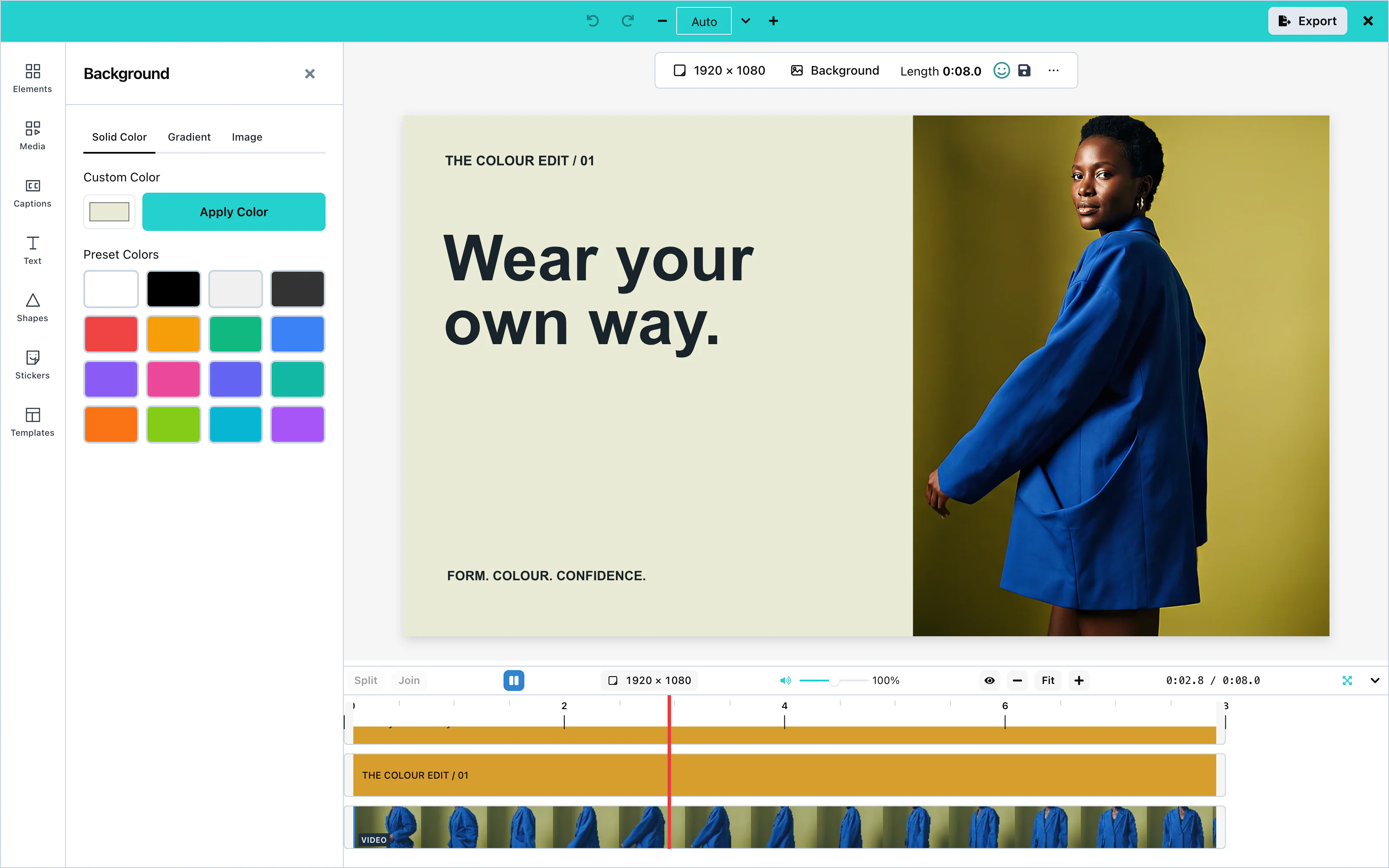
On the Solid Color tab, click one of the Preset Colors, or choose a Custom Color and press Apply Color.
The color stays with the background when the user changes it to a gradient, a picture, or a blurred copy. It is the fallback color: the preview and the exported video show it whenever the background cannot be drawn. That happens while the clip of a blurred copy is not on screen, when the colors of a gradient cannot be read, and when a picture cannot be loaded. In the preview, a picture that has not loaded yet also shows the color. When no color was ever chosen, the fallback is white. To change the fallback color, choose a color again. The background then becomes that color.
 View full size
Gradient
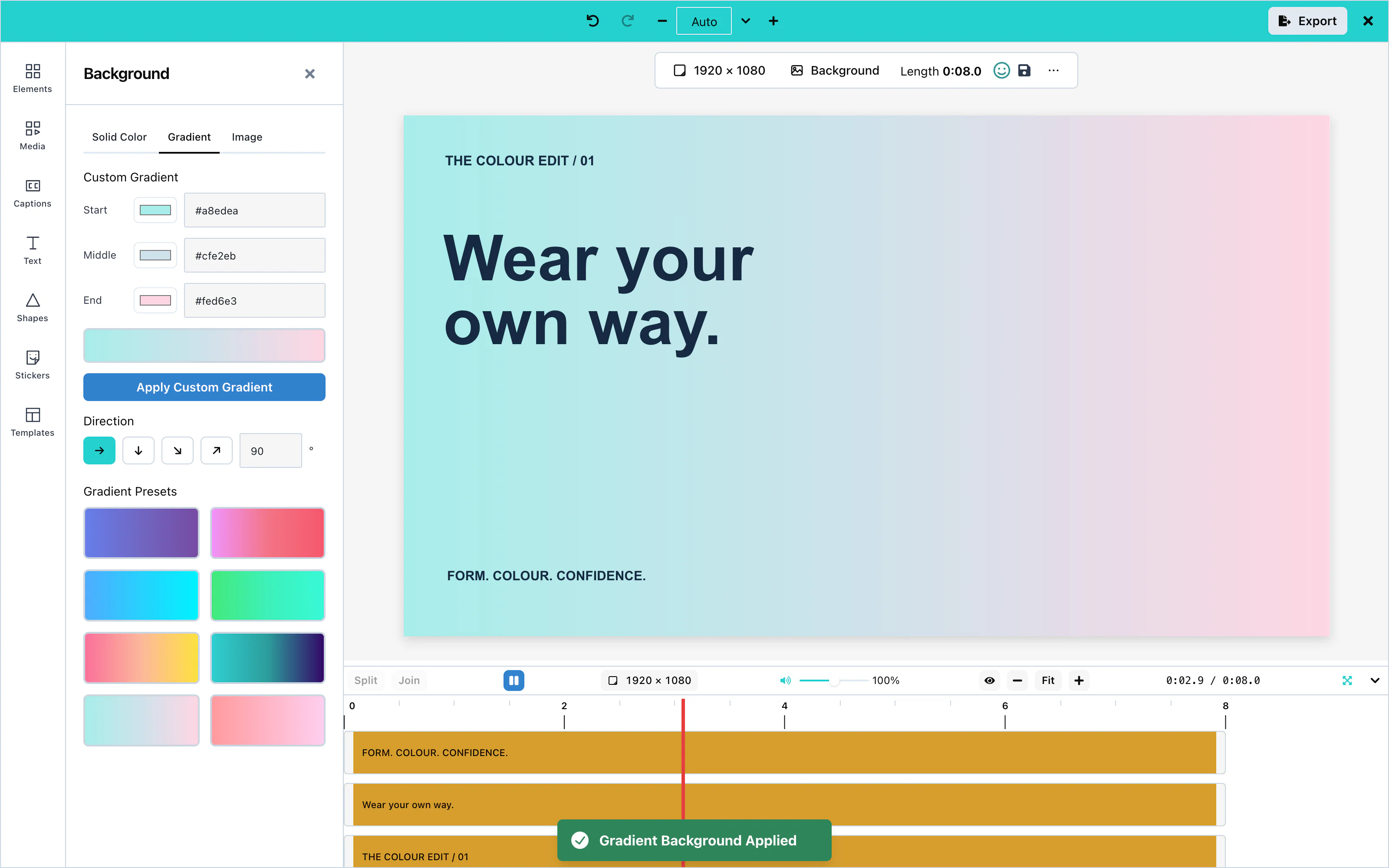
On the Gradient tab, click one of the Gradient Presets, or choose the Start, Middle, and End colors and press Apply Custom Gradient.
Under the colors, Direction says which way the gradient runs: → (left to right, the default), ↓ (top to bottom), ↘ and ↗ (the two diagonals). For any other direction, type a number of degrees from 0 to 359 and press Enter. 90 is left to right and 180 is top to bottom.
 View full size
Image
The Image tab puts a picture behind everything. It has, from top to bottom:
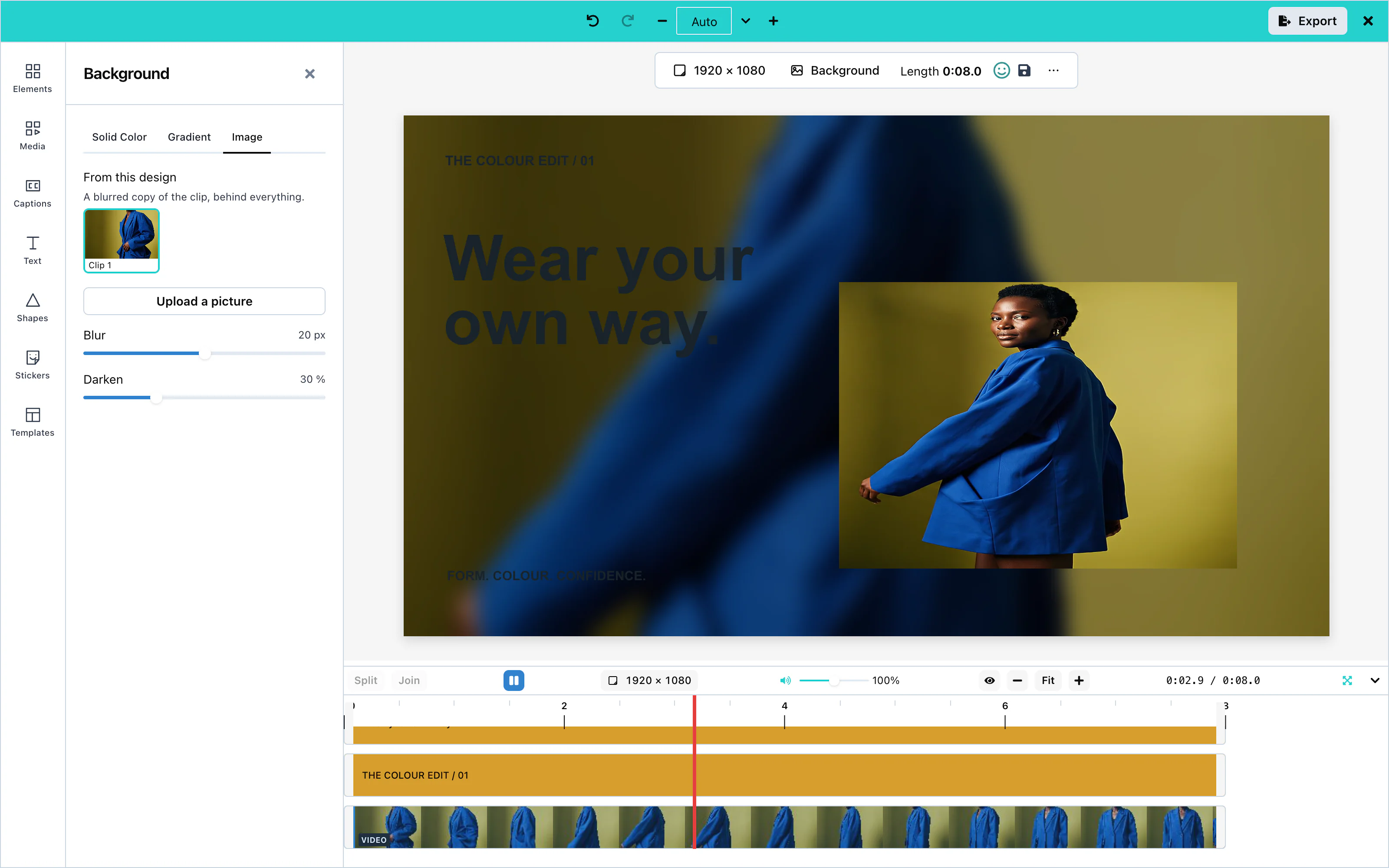
- From this design: one tile for each picture or clip on the canvas. Press a tile to make the background a blurred, darkened copy of that picture or clip. See Blurred background.
- Upload a picture: choose a picture file from the computer.
- The Unsplash search, when Unsplash is connected. The user searches photos and clicks one. The photographer's name is shown with each photo, as Unsplash requires.
- Blur and Darken, whenever the background is a picture or a blurred copy.
A picture is scaled to cover the whole canvas and centred. The parts that do not fit are cut off equally from both sides, on screen and in the exported video.
Pictures from web addresses
A background picture can come from a web address, for example from Unsplash, from a template, or from the canvasSetBackgroundImage action. The editor asks for it as a cross-origin request, in the preview and in the export. So the server that holds the picture must allow your page to read it. It does this with a CORS header in its answer, for example:
Access-Control-Allow-Origin: https://app.example.comUse the address of your page, or * for a public picture. Pictures that you store through onUploadAsset need the same header. See Asset storage.
When the server does not send this header, the picture cannot be drawn. The preview then shows the fallback color, and so does the exported video. See Solid color.
A signed address, from S3 or CloudFront for example, is loaded exactly as it is. See Signed addresses.
Blur softens the picture, from 0 (sharp) to 40 pixels. Darken puts black over it, from 0 to 100 %. Both help text on top stay readable. The design changes once, when the slider is let go.
 View full size
Blurred background
A landscape clip on a portrait canvas leaves empty bars above and below it. A blurred background fills them with a soft, darkened copy of the clip itself, the way phone video apps do.
There are three ways to make one:
- On the Image tab, press the clip's tile under From this design.
- Right-click the clip on the canvas and choose Use as blurred background. The same line is on the menu of a picture.
- In the Resize panel, choose Blurred fill before Apply. Everything is fitted to the new size, and a blurred copy of the clip on screen fills the rest.
A new blurred copy starts at Blur 20 pixels on a canvas 1080 pixels on its short side (the number follows the short side, from 0 to at most 40) and Darken 30 %. If the background was already a picture or a blurred copy, its own Blur and Darken are kept.
The copy follows the clip as it plays, and it is fitted again whenever the canvas is resized. It shows the whole frame of the clip, even when the clip itself is cropped.
While the clip is not on screen, the background shows its fallback color instead (see Solid color). The panel then says: "The blurred background shows only while this clip is on screen. Elsewhere the canvas shows the colour below." with a small swatch of that color.
Generate background
ai setting that serves pictures. See AI providers.Press Generate background at the top of the panel, describe the picture, and press Generate. Choose a result and press Set as background. It becomes the background. Your onUploadAsset stores it first, so the design keeps your own address for it.
A host that shows AI pictures in panels shows this control too. To remove it, leave 'panel' out of ui.generative.actions.image.surfaces. That also removes Generate image from the Media panel.
Configuration
| Prop | Type | Default | Description |
|---|---|---|---|
stockMediaApis | object | none | unsplash adds the photo search to the Image tab. Without it, the tab still offers From this design and Upload a picture. |
ai | object | none | A picture capability adds Generate background. See AI providers. |
ui | object | none | ui.toolRail.hidden: ['background'] removes the Background panel. See UI customization. |
Events
The background has no events of its own. It reaches you inside the exported video through onExport. See Events.