

Captions
Burned-in captions from speech or from a subtitle file.
Captions are words drawn into the picture of the video. They come from the speech in a clip, or from an .srt or .vtt file. For the difference between captions and subtitles, see Subtitles.
Setup
Importing a subtitle file and styling captions work with no setup. Automatic captions need a transcription service. The simplest one is your media server, which you pass as mediaApiUrl:
import { VideoEditor } from '@layermetry/media-editor/react';

export default function App() {
  return (
    <div style={{ position: 'fixed', inset: 0 }}>
      <VideoEditor
        licenseKey="YOUR_LICENSE_KEY"
        onClose={() => console.log('The editor was closed')}
        onExport={(file) => console.log(`Exported ${file.name}`)}
        // Automatic captions: your media server turns speech into text.
        mediaApiUrl="https://media.example.com"
      />
    </div>
  );
}
Automatic captions
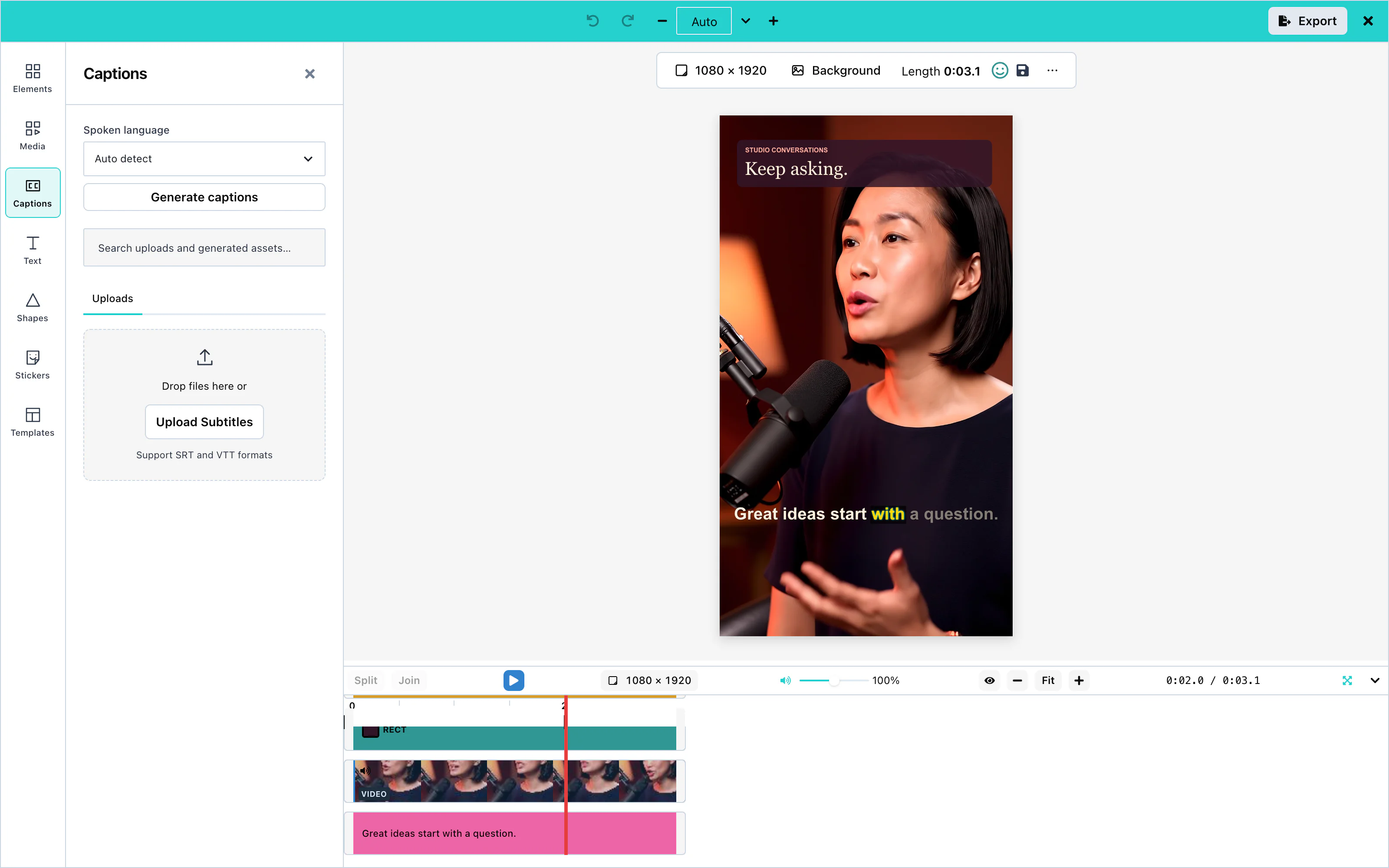
mediaApiUrl or ai.captions.transport. Hosted AI is coming soon. Available only with an enterprise licence from Layermetry. See Custom transcription and AI providers.Automatic captions write down what is said in a video clip. Select a clip, open the Captions panel, and press Generate captions.
A Generate captions button also appears in the bar under a selected clip, while the video has no captions yet.
A voiceover recorded in the editor can be captioned from the recorder itself. See Captions from a recording. The AI assistant and your own code can caption any clip with sound through the captionsFromClip action. See Editor actions.
 View full size
The editor sends the sound of the clip to the service, and adds one caption track that covers the clip. Then it adjusts the timing, so that no caption overlaps the next one and none stays on screen too long to read.
For a trimmed clip, the editor sends only the part of the file that the clip plays. For a clip at another speed, it places each caption by the clip's speed. The captions then match the voice on the canvas and in the exported video.
 View full size
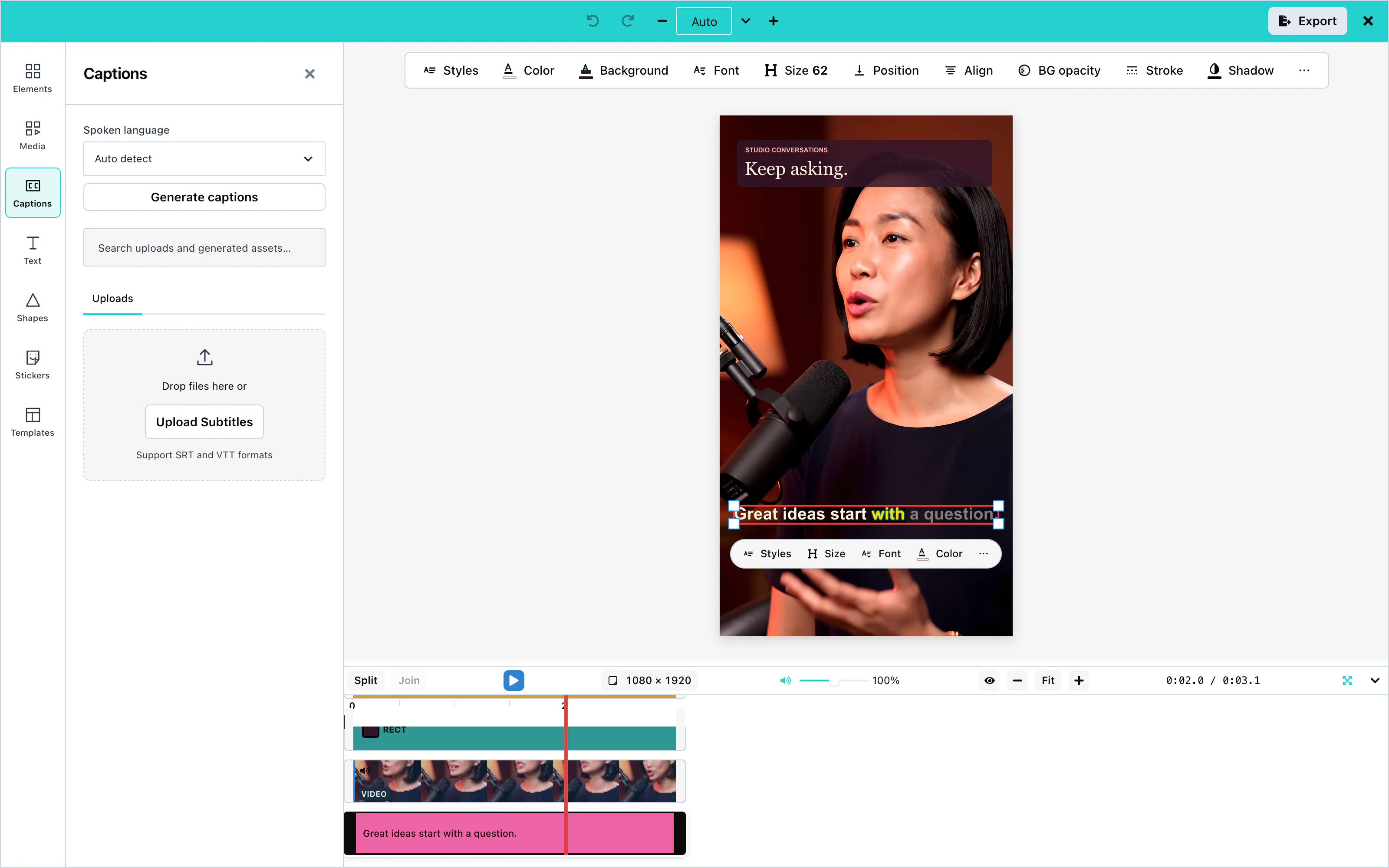
The panel shows Spoken language above Generate captions. By default it offers Auto detect, which is chosen at first, and a list of common languages. With Auto detect, no language is sent, and the transcription service detects the language itself.
To offer a fixed list of languages, set captions: { languages: ['fr', 'en'] } in ai. The list then shows exactly those languages, and the first one is chosen until the user picks another. The Generate captions button under a clip and the right-click menu use the same choice.
Disable captions
To remove automatic captions from the editor, pass captions: false in ai:
ai={{ endpointUrl: 'https://api.example.com/ai', captions: false }}The editor then offers no control that sends sound to be written down. These controls are hidden:
- the Generate captions chip on a selected clip, in the selection pill, in the phone's selection bar, and in the phone's small pill when you add it through
itemActions; - Generate SRT in the toolbar above the canvas;
- the Generate captions button in the Captions panel, and its Spoken language control;
- the Generate captions line in the right-click menu;
- Generate captions in the voiceover recorder.
The AI assistant is not offered the captionsFromClip action. toolContracts on the Editor API and on the headless runtime leave it out, and list() still names it. A caller that runs captionsFromClip anyway is refused with "Captions are switched off in this editor, so the sound was not sent anywhere." No sound is sent to any service.
Each of these controls also follows ui.generative for captions. The bar above the canvas and the chips are the selection place, the Captions panel is panel, and the right-click menu is contextMenu. See UI customization.
Without an ai prop, captions controls stay visible and use your explicit mediaApiUrl. If you set neither mediaApiUrl nor ai.captions.transport, pressing Generate captions explains that the app needs a transcription service. No audio is sent. The developer console names the missing settings once.
SRT and VTT import
Open the Captions panel, press Upload Subtitles, and choose an .srt or .vtt file. The file appears under Uploaded Files. Press + on it to add the captions to the video.
The captions start at the beginning of the video and end with the last caption in the file. Imported captions start at the Bottom position, like every new caption.
1
00:00:00,500 --> 00:00:02,500
Welcome to the product tour.

2
00:00:02,800 --> 00:00:05,000
Here is how captions work.
A caption can have more than one line. Formatting tags in a VTT file, such as <b>, are removed.
A caption can name its speaker. In an .srt file, the name comes first in square brackets: [Anna] Welcome back. In a .vtt file, the name is a voice tag at the start of the caption: <v Anna>Welcome back. Both become the caption's speaker, and the words are Welcome back.. In a .vtt file, &, <, and > become &, <, and >. An .srt file is read as it is written.
A VTT time can have hours, as in 00:00:01.000, or only minutes and seconds, as in 00:01.000. A file whose first line is WEBVTT is read as VTT, whatever its name. A speaker name is read only from square brackets at the start of a caption, such as [Anna] Hello.. Every other caption is kept exactly as written, including text with a colon.
Caption styles
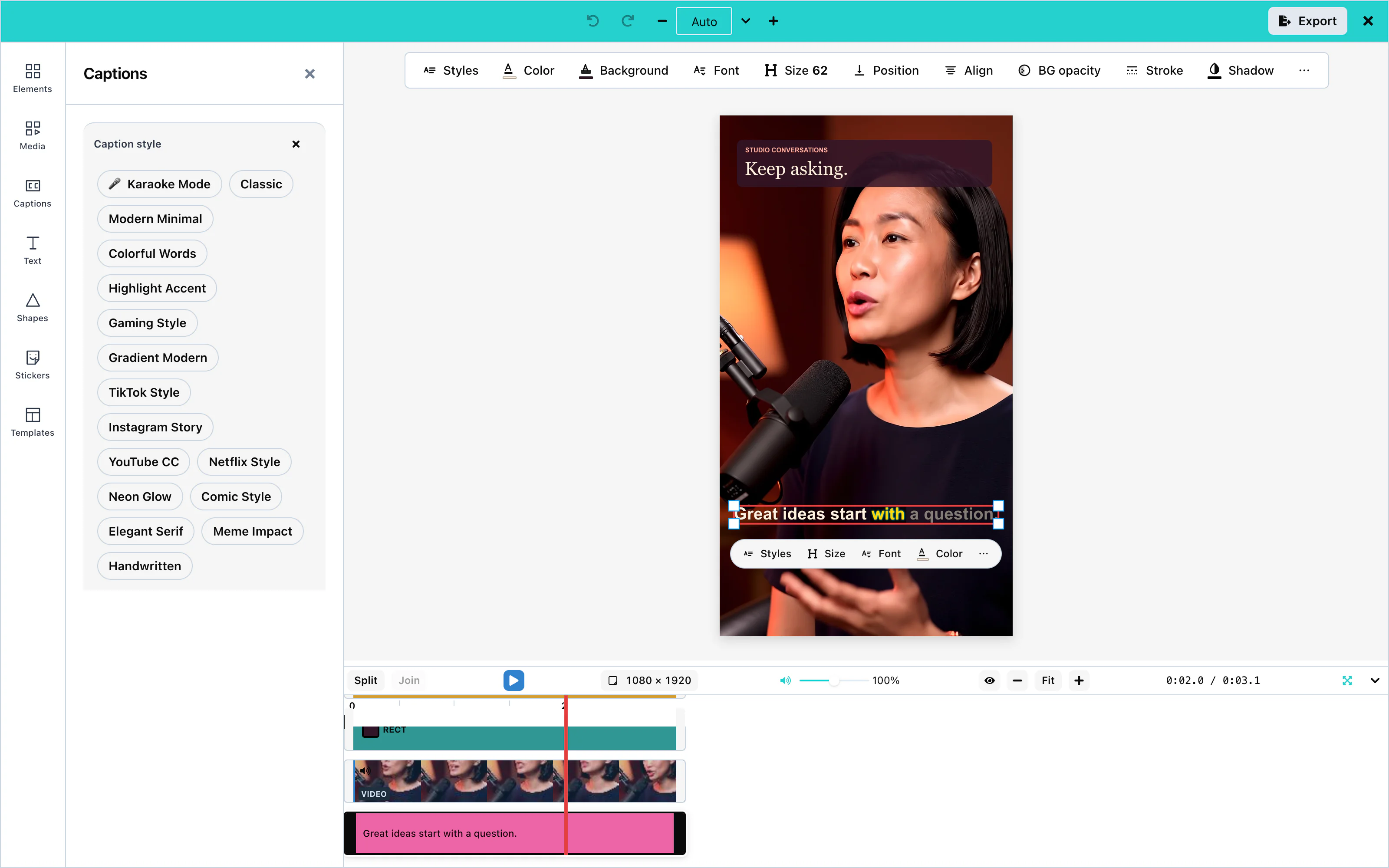
Select a caption on the canvas or on the timeline. A bar appears under it with these controls:
| Control | What it changes |
|---|---|
| Styles | Applies one of 16 ready-made styles, such as Classic, Modern Minimal, and Karaoke Mode. |
| Size | The size of the letters, from 12 to 72. |
| Font | The typeface: Arial, Arial Black, Helvetica, Impact, Times, Courier, Georgia, Verdana, Roboto, or Open Sans. |
| Color | The color of the text. |
| Background | The color of the band behind the text. |
| BG opacity | How solid the band is, from 0 (invisible) to 1. |
| Position | Top, Center, or Bottom. See Positioning. |
| Align | Left, center, or right. |
| Stroke | An outline around the letters. |
| Shadow | A shadow behind the letters. |
The first four controls show in the bar. The others are under ⋯. Ready-made styles also set letter weight, letter spacing, line spacing, and letter case. The canvas and the exported video draw all four. Letter case changes only the drawn letters: the stored words, the SRT file, and the subtitle track keep the words as written.
 View full size
A new caption uses Arial, white letters on a black band at 80% opacity, centered at the bottom. The letter size follows the height of the video: 54 for a video 1,080 pixels tall.
Every style appears in the exported video exactly as in the editor, including the outline and the shadow together.
Caption animation
Each caption line can arrive with an animation. The animation takes 0.3 seconds from the moment the line starts, on the canvas and in the exported video:
| Value | What the line does |
|---|---|
none | Appears at once. |
fade | Fades in. |
slide | Fades in while it rises half a letter-height into place. |
bounce | Rises, goes a little too far, and settles. |
Set it with the animation argument of the subtitleSetStyle action, from the AI assistant or from your own code. See Editor actions.
Positioning
Position places the middle of the caption at a fixed share of the video's height:
| Position | Height from the top |
|---|---|
| Top | 10% |
| Center | 50% |
| Bottom | 85% (the default) |
The band behind the text spans the width of the video.
When you resize the canvas with Fit, Fill, or Reflow, captions scale with the picture. The letter size, the outline width, the shadow blur, the padding, and the letter spacing all change by the same ratio as every other item. The position stays the same share of the height. Keep changes nothing. An export at another size, from Sizes in the Export panel, scales its copy of the captions in the same way. See Resizing.
Word highlighting
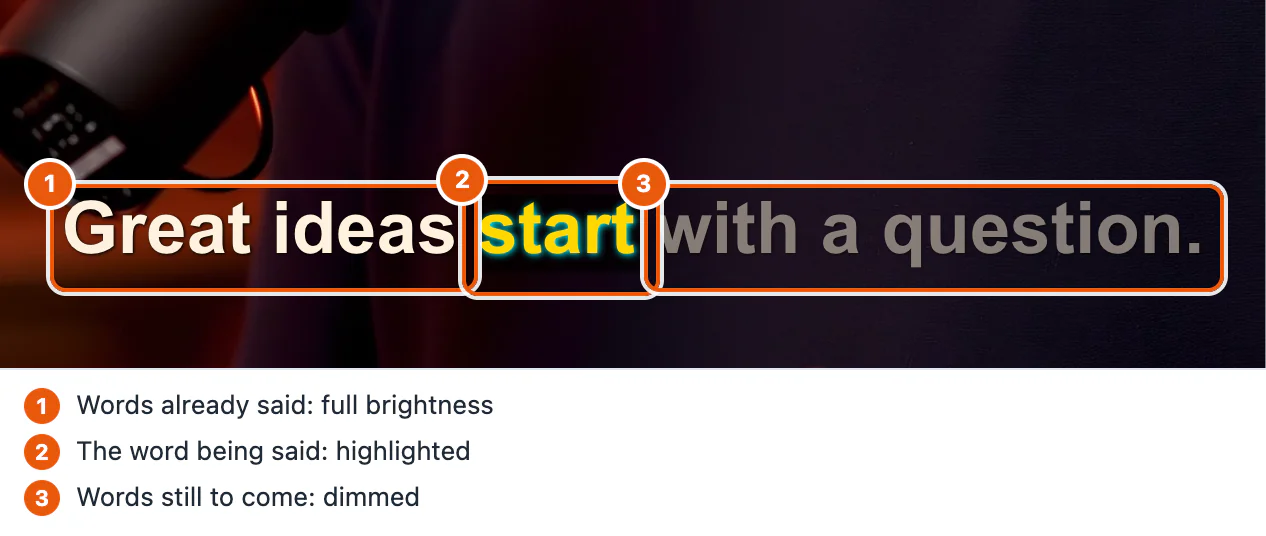
The Karaoke Mode style highlights each word while it is spoken. The words already spoken stay bright, and the words still to come are dimmed.
Automatic captions carry the time of every word, so the highlight follows the voice. A subtitle file has no word times, so the highlight moves evenly across each line.
The highlight appears in the exported video.
Custom transcription
ai. See AI providers.You can send the sound to your own service instead of mediaApiUrl. Give captions their own transport inside ai. Other AI features keep the transport at the top level.
This example sends the sound to /api/transcribe on your server:
import { VideoEditor, type AIRequestFunction } from '@layermetry/media-editor/react';

// Sends the sound of the clip to your own transcription service.
const transcribe: AIRequestFunction = async (request, signal) => {
  if (request.input.operation !== 'captions') {
    throw new Error(`This function handles captions only, not ${request.input.operation}`);
  }
  const body = new FormData();
  body.append('audio', request.input.audio);
  const response = await fetch('/api/transcribe', { method: 'POST', body, signal });
  // Your service answers { items: [{ segments: [...] }] } or { items: [{ srt: '...' }] }.
  return response.json();
};

export default function App() {
  return (
    <div style={{ position: 'fixed', inset: 0 }}>
      <VideoEditor
        licenseKey="YOUR_LICENSE_KEY"
        onClose={() => console.log('The editor was closed')}
        ai={{
          endpointUrl: 'https://api.example.com/ai',
          captions: { transport: { requestFn: transcribe } },
        }}
      />
    </div>
  );
}
Your function returns the answer of your service. The editor reads any of these shapes:
| Answer | Word highlighting |
|---|---|
{ "items": [{ "segments": [{ "text": "Hello", "start": 0, "end": 1, "words": [{ "text": "Hello", "startTime": 0, "endTime": 1 }] }] }] } | Follows each word |
{ "items": [{ "srt": "1\n00:00:00,500 --> 00:00:01,500\nHello" }] } | Moves evenly across each line |
{ "items": [{ "text": "Hello" }] } | Moves evenly. The editor estimates the times of each line. |
{ "items": [{ "srtPath": "https://cdn.example.com/captions.srt" }] } | Moves evenly across each line; the file must allow the editor to read it. |
With endpointUrl as the captions transport, your proxy receives the sound as a multipart form with the fields audio, operation, and type, and answers with one of the same shapes. When the user chose a spoken language, the form also has language, and your function receives it as input.language. The editor does not send your license key to your proxy or your function.
Configuration
| Prop | Type | Default | Description |
|---|---|---|---|
mediaApiUrl | string | none | Your media server. Automatic captions send the sound to {mediaApiUrl}/speech-to-text. |
ai | object | none | Configure ai.captions.transport with your transcription endpoint or callback. The general AI transport is not inherited by captions. Hosted AI is coming soon. Available only with an enterprise licence from Layermetry. |
ai.captions | false or object | on | false hides every captions control and refuses captionsFromClip. See Disable captions. An object can set transport, maxPerSession, and languages. |
maxPerSession counts generations in the browser, per editor, while the page is open. It is a guard for honest use, not a security control, so enforce your real limit on your server.
Events
Captions have no events of their own. They are part of the design, and they reach you inside the exported video through onExport. See Events.
Troubleshooting
Additional resources
Subtitles
Subtitle tracks, SRT export, and how they differ from captions.
AI providers
Use your own endpointUrl or requestFn. Hosted AI is coming soon and available only with an enterprise licence from Layermetry.
Custom AI endpoint
The request and response formats of your own AI server.
Export
Render the finished video with its captions.